

Leverage Suitable for Your Registered Student Organization
RSOs in Suitable
Suitable is a great new tool that will help frame and refine the WKU Experience- including RSOs! As an RSO advisor or officer, YOU can use Suitable to highlight your WKU registered student organization (RSO), manage membership and attendance, and more!
The information on this page includes information about special Suitable functionality for RSOs, tips and guidelines, and detailed step-by-step instructions.
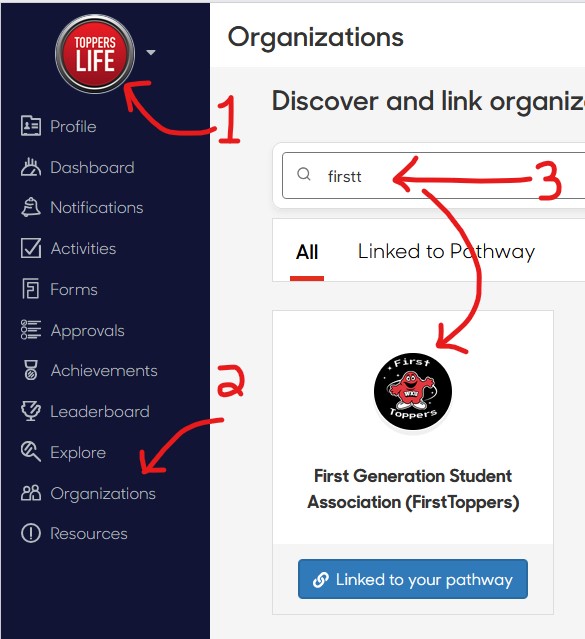
- Use the icon on the upper left of the mobile app or browser version of Suitable to toggle to the Toppers Life dashboard.
- Go to Organizations:
- Browser: Select Organizations in the left menu.
- Mobile App: Tap the bottom-right menu option (three lines). Then, tap Organizations.
- Use the keyword search to find your RSO.
- Click the graphic (not the pathway link) to view the profile.
For videos and more detailed instructions follow these links:
If you see the blue Manage button when viewing your profile, you have access to make changes. If you do not see the Manage button, this means you have not been assigned as a leader of the organization. Contact rso@wku.edu for assistance.
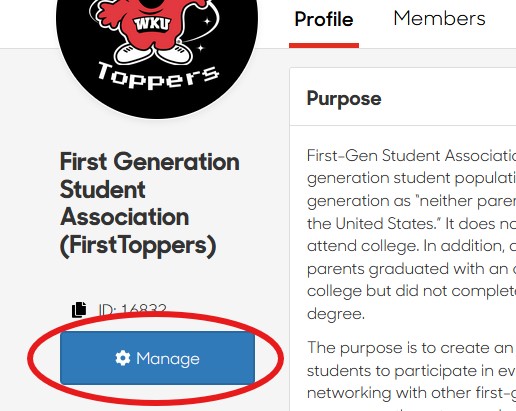
Click the Manage button to edit your RSO profile. You may:
- Add a New Content Section using the button at the bottom. Sections may include:
- Text, Bulleted Lists
- Links
- Attachments (files)
- Remove Sections using the three-dot menu (note other options in the menu)
Important: Remember to save EACH section you modify AND the overal Organization profile each time you make changes.
Follow these links for detailed instructions:
Adding and Removing a New Section to a Student Organization
Adding HyperLinks to Content Sections
Depending on your access level, you can:
- Add members one at a time
- Import a file to add multiple members in a batch
- Get a membership report as an Excel file
- Search by keyword or role to find and view members
- Edit a member's role
- Remove a member
Note: You MUST use a WKU email when adding a member. Non-WKU emails will not function with the single-sign-on system.
Adding Individual Members to Your Student Org
Adding a Batch of Members to Your Student Org
You can use the three-dot menu in the upper right of a member's record on your list to:
- Edit the member's information, or
- Delete the member from your organization. (This will not impact the person's Suitable account, only their membership in the organization.)
There are three different role settings for individuals on your organization member list:
- Access Roles (Member, Leader, Manager)
- The access role determines what the individual can do in Suitable- editing your profile, requesting activities, and so on.
- Access roles are specified in Suitable and the names of these roles cannot be changed.
- Member Roles (Member, Advisor, Officer, Other)
- The member role reflects the individual's role in your RSO.
- The meaning of the role names may be defined by your RSO.
- Title
- You may choose from a list or create a custom title
- This third description for your members is available to use/define at your RSO discretion.
Full Organization Role Details
Note: The RSO Advisor is set up in your profile by Student Activities. RSO members with "manager" or "leader" roles are set up by Student Activities OR your RSO Advisor. Advisors who are WKU employees may increase their access levels in Toppers Life and Toppers Climb through training sessions. Additional information is available on the Partners page.
Suitable should NOT have:
- Information protected by FERPA, HIPAA, etc. This means NO grades, NO medical information, NO social security numbers, etc.
- Information that should be somewhere else, such as Blackboard assignments.
Suitable should have:
- Activities that capture student engagement on campus outside of core academic activities. Suitable is the place to capture engagement and accomplishments that don't show on an academic transcript.
- Engagement and accomplishments that are good additions to student Scorecards.
The person who requests/creates the activity is the "owner." The owner has menu options for the activity that others will not see. The person who requests activities for your RSO should be the person who will work with those activities over time.
Activity ownership is a commitment! Owners should:
- Create good-quality activities that provide enough details to be informative and look professional;
- Monitor activities to ensure completions (attendance) is valid;
- Follow up to ensure that reports are shared appropriately.
Should you create an activity?
- Do you present the event or task AND can you ensure that completion data is valid? Yes to both: Proceed; No to either: Stop
- Would it be more appropriate to present your event or task as a Blackboard assignment or through some other system? No: Proceed; Yes: Stop
- Would your activity include any FERPA-protected information, such as for-credit course completion, grades, etc.? No: Proceed; Yes: Stop
- Has anyone else already created an activity that serves the same purpose/captures the same data? No: Proceed; Yes: Stop
- Do you want to track service hours or some other data that involves capturing progress over time? Caution: Ensure that you understand the pros and cons of setting up an activity in Suitable to accomplish this. Contact Student Activities or suitable@wku.edu for assistance.
- Naming an Activity
- Be concise but clear. This will help people sort your "meeting" from all of the others!
- Consider identifiers, such as your org name at the beginning and time frame to the
end. This will help your activities make sense on reports and in lists.
- Example 1: FirstToppers Volunteer Day Spring 2026
- Example 2: Big Red's Club Meeting, Feb 12
- Activity Description
- What will people do? What should they expect? Why should they attend?
- Exactly what should people do to register the activity completion in Suitable?
- How much time will it take?
- Is additional information needed? Provide links!
- WHO is the contact for more information? Consider directing people to your student org profile.
- Activity/Experience Tags
- Required: Hosting Unit - Student Organization
- Required: Student Organization - [select your organization]
- Optional: Mode/Format - help people know if they can participate from off campus, or not.
- Other tags are program-specific, do not use them.
- Note: Tags are an important!
- Tags are more precise than keyword searches to help people find your activities.
- Tags are a great way to identify your activities so you can run reports.
- Competencies/Levels/Points
- Choose the ONE competency that best reflects the purpose of your event or task. If you absolutely MUST select multiple competencies, lower the level/points to the minimum.
- Choose the appropriate Level so that they are meaningful across all student orgs.
- Level 1: Attendance with minimal effort. Passive participation.
- Level 2: Moderate effort, active participation. Examples: attended a workshop, volunteered for less than half a day
- Level 3: Sustained effort across time. Example: mentoring, planning and presenting activities
- Level 4: High-impact leadership or experiential learning. This level includes demonstration of substantive skill development.
- DO NOT USE Level 5. Rather, present multiple activities at lower levels.
- Validity
- Ensure that attendance is accurate.
- Give Credit, as needed, to maintain accuracy. (If someone can't scan the QR.)
- Give Credit using the activty three-dot menu.
- Note: Student accounts do not have the ability to give credit, even to activities that they create. Advisor accounts can give credit to activities that they create. If you need to give credit to an activity, you can request assistance from a Publisher or Global Admin. These two account types can give credit to any activity. Be able to provide a list of Toppermails for the individuals to be given credit.
- Monitor your activity until the end date has passed.
- RSVP - The RSVP is an optional feature that may not appear in the linked instructions. This option is on the Date tab in the activity creation wizard.
Detailed Instructions for Activities:
You can use a direct link (URL or web address) on your webpage, print materials (use a QR generator), etc. NOTE: This is NOT the completion/attendance QR. Use this link to see instructions for retrieving a direct link:
Getting a Direct Link for Your Activity
The direct link will lead to the web/browser version of Suitable NOT the mobile app. You may wish to include instructions for finding your activity using the mobile app, as well.
Generating a membership list will allow you to capture email addresses so that you can email members.
If your organization is associated with an academic department and/or is co-presenting an activity for which faculty may wish to give course credit, share your activity availability with them. Faculty may add any Suitable activity to a Blackboard course or organization; faculty do NOT need a Suitable account to do this.
Once your activity request is approved, Suitable will automatically send an attendance QR to your email. You can also use the three-dot menu on an activity to print the QR flyer (Get Smart Code) at any time. Detailed instructions are available here.
The completion QR may be scanned with the mobile app or the phone camera.
- Phone camera - browser version, login and multi-factor authentication required each time.
- Mobile app (bottom center menu option) - no login required if you are already logged in to the mobile app. Note: access to the phone camera must be granted to use this method.
The completion QR will ONLY work during the event times entered in Suitable. For example, if the event is set to begin at 2:00, the QR will not work before 2:00. The QR will work for approximately 30 minutes after the end time set in Suitable.
If you would like to verify that a scan worked correctly, in the Suitable app:
- go to the dashboard indicated on the QR flyer (Toppers Climb or Toppers Life)
- go to Activities (checkbox menu option in the mobile app)
- slide the "tabs" to see, then select, Completed (the tabs include: Upcoming, All, Shared, Pending Approvals, and Completed)
- scroll or filter to find the activity
If someone is not able to scan the QR and legitimately needs to register their attendance (register completion of the Suitable activity). You can use these instructions to Give Credit.
It is very easy to forget all of the things you do during your WKU Experience! And, it is even easier not to recognize the value of your campus engagement. When you register your completion of activities in Suitable, it is recorded as part of your Scorecard. This means that all of those activities will be available to you to browse in the future. The activities can provide examples of leadership, teamwork, communication, and other skills that are important to employers in any profession. Be sure to use this valuable repository as you are writing your next cover letter or preparing for your next interview!
Note: You have access to your Scorecard, Portfolio, and Co-Curricular Record as long as you have your Toppermail account.
Details are available on the For Students page of this website and at these links:
Accessing the Scorecard and Portfolio and Why You Would Want To!
Things to know:
- Students may opt out of the Leaderboard in their settings. If they do not appear, this may be why.
- The Leaderboard shows the top 20 students based on the selected filters.
- Toppers Life and Toppers Climb have separate Leaderboards. Consolidating your RSO activities in Toppers Life will ensure that they count toward totals on the Toppers Life Leaderboard.
- Leaderboard totals are based on ALL activity completions in the dashboard (Toppers Life or Toppers Climb). The totals may not be restricted to a specific set of activities.
Navigating the Leaderboard - Students
To see the students in your RSO with the highest points in Suitable:
- Open the Web/Browser version of Suitable, toggle to Toppers Life, select Leaderboard in the menu on the left.
- Be sure the toggle at the top is on Students.
- Click Filters on the upper right. Select the time range. Then, use the Groups filter to select your RSO.
- Click Apply Filters
- You may click the Share button in the upper right corner to share this filtered view with others.
To compare points between Groups:
- Open the Web/Browser version of Suitable, toggle to Toppers Life, select Leaderboard in the menu on the left.
- Be sure the toggle at the top is on Groups. Select "Groups" in the row of options.
- You may filter for specific time ranges on the upper right.
- You may click the Share button in the upper right corner to share this filtered view with others.
For more information about the Group Leaderboard, including how points for Groups are calculated, follow this link:
For assistance or additional information about Registered Student Organizations at WKU, contact rso@wku.edu
For general Suitable information, contact suitable@wku.edu
Some of the links on this page may require additional software to view.